Use the Scroll View nodes to define an area where to generate scrolling messages in response to user input and physics-based animation. For example, you can use the scroll message with its parameters generated by a Scroll View node to move a map plane or rotate a mesh.
The Scroll View defines an interactive area and sends the messages reflecting the changes in the scroll position. The position and size of a Scroll View node define where the Scroll View registers input. After you create a Scroll View node you have to define what happens in response to scroll position changes. For example, you can use a Scroll View node to move 3D objects. See Tutorial: Rotate a 3D model.
The reports changes of its scroll position through the Scrolled trigger. You can add actions to react to these messages to, for example, set the position of an object according to the scrolling.
Scroll View 3D is a 3D control, so take into account that the orientation towards the viewer is important. A Scroll View node tracks user input along the focus plane that is in the center of the Scroll View node. Make sure that you do not rotate this focus plane so that it is either perpendicular to or faces away from the viewer.
You can nest Scroll View nodes to scroll parts of your application on different axes. See Nesting Scroll View nodes.
When a Scroll View node has focus, you can scroll the contents of that node using the ← (Left Arrow), → (Right Arrow), ↑ (Up Arrow), and ↓ (Down Arrow) keyboard keys.
Creating a Scroll View node
To create a Scroll View node:
- In the Project press Alt and right-click the node where you want to create a node and select either Scroll View 3D, or Scroll View 2D.
Note that you can create a 3D node only inside 3D nodes, and 2D node only inside 2D nodes. - In the Project create a node that works as an input plane you want to control with scroll gestures.
For example, if you created a Scroll View 3D node, add a Plane, if you created a Scroll View 2D, add an Image. - In the Project select the Scroll View, in the Node Components > Triggers section click + Add Triggers, and in the Add Triggers window add one of the triggers from the category.
For example, add the Scrolled trigger.
- In the Node Components in the Scrolled trigger click the dropdown menu and select one of the actions.
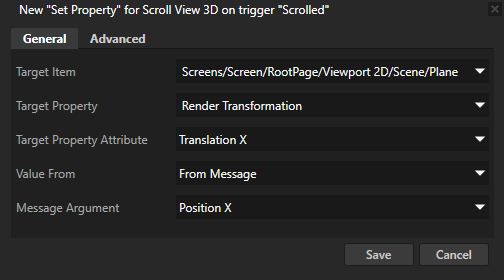
For example, select the Set Property action and set:- Target Item to the object you want to control with the Scroll View node.
If you created a Scroll View 3D and a Plane, select that Plane. If you created a Scroll View 2D and an Image, select that Image. - Target Property to the property you want to affect with the Scroll View node.
If you created a Scroll View 3D, select Render Transformation. If you created a Scroll View 2D, select Render Transformation. - Target Property Attribute to the attribute you want to control with the Scroll View node.
To scroll the object along the x axis, select Translation X. - Value From to Message
- Message to the same axis in the Target Property Attribute
For example, if you selected Translation X, select Position X.
Click Save.

In the Preview when you click and drag along the x axis within the Scroll View node, the object you set as the Target Item of the Set Property action of the Scrolled trigger moves according to the settings defined by the Scroll View node. - Target Item to the object you want to control with the Scroll View node.
- (Optional) In the Project select the and in the Properties adjust the threshold, acceleration, drag, and other settings to create a scroll view that responds to user input the way you want it to respond:
- Scroll Sensitivity property sets how much the position changes relative to the movement of the pointer that starts the swiping. The higher the value the more the position of the object controlled by the node changes. Negative values move the object in the opposite direction.
- Sliding Accerelation property sets the acceleration of the object after you release the pointer with which you swipe. Use low values when you want the object controlled by the node to slowly reach the final position. Use high values when you want the object to quickly reach the final position .
- Sliding Drag property sets how much drag affects the movement of the object after you release the pointer with which you swipe. The lower the value the higher the drag and the faster the sliding of the object controlled by the node stops.
- Scroll Bounds Minimum and Scroll Bounds Maximum properties set the minimum and maximum values for the scroll bounds. Scroll bounds define where the scrolling begins and ends.


- Looping X Enabled and Looping Y Enabled properties set the object to start scrolling from the beginning when the scroll reaches the scroll bounds on the x or y axis. Use the Scroll Bounds Minimum and Scroll Bounds Maximum properties to set the scroll bounds.


Nesting Scroll View nodes
You can nest Scroll View nodes to create a scroll view which you can set to scroll on different axes. You can also nest Grid List Box and Trajectory List Box 3D nodes. See Nesting Grid List Box nodes and Nesting Trajectory List Box 3D nodes.
For each Scroll View node, use the Scroll Axis property to set the axis on which each Scroll View scrolls.
To nest Scroll View nodes:
- Create a Scroll View node. See Creating a Scroll View node.
For example, create a Scroll View node and inside it create an Image node.
- Select the Scroll View node you created in the previous step and in the Properties set the Scroll Axis property to the axis on which you want that node to scroll.
For example, to set the Scroll View node to scroll on the x axis, set the Scroll Axis property X property field to 1.
- Create the Scroll View node that you want to nest in the Scroll View node you created in the previous step.
For example, to scroll an image within an image, create another Scroll View node with an Image node.
- Select the nested Scroll View node and in the Properties set the Scroll Axis property to the axis on which you want that node to scroll.
For example, to scroll the nested Scroll View on the y axis, set the Scroll Axis property Y property field to 1.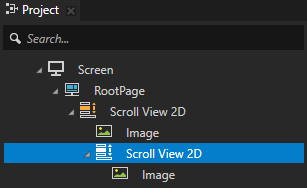

Debugging a Scroll View
To test whether the scroll view is working properly, add to the scroll view trigger you are using a Write Log action. Every time you use the scroll view, Kanzi Studio writes a message to the Log window.
Setting the appearance of a Scroll View 2D
To set the appearance of 2D nodes:
- You can fill 2D nodes with a solid color, a texture, or a material. See Adjusting the appearance of 2D nodes.



- You can rotate a 2D node around all three axes to create a 3D perspective effect. See Creating a 3D perspective effect for 2D nodes.

- You can apply custom rendering to 2D nodes to create post-processing effects. See Applying custom rendering to 2D nodes.

Scroll view example
This example shows how to use the Scroll View node as a controller for moving a map plane in a scene. In the example the Kanzi Studio project contains a Scroll View node which translates the scroll position coordinates to the translation fields of a node. The example implements more advanced features in the C++ application using the Kanzi Engine API.
A key aspect in using the Scroll View node is the controlling of input sensitivity based on the distance of the scroll view plane from the camera. This example uses a one-to-one mapping with the background plane by positioning them at the same distance and orientation from the camera. Scroll view and the background plane, however, are not tied together under the same translation because that way the input coordinate space would move along with the background plane during the user's panning gesture. By positioning the scroll view plane further from the camera, the sensitivity of scroll view gestures increases.
This example demonstrates the use of a raw InterpolatedValue instance in the C++ application for afflicting a z-offset (zoom) based on the velocity of the movement.
The scroll view as well as the trajectory list box components manipulate input to output coordinates through a value interpolator, effectively allowing for smoother gesture mappings that are often most suitable for touchscreen based interactions.
You can find the example in the <KanziWorkspace>/Examples/Scroll_view directory.
Using the Scroll View 3D node in the API
To create a Scroll View 3D node that animates the transformation of a 3D node in response to scroll messages:
// Declare the variable for storing the Scroll View node used in this example.
ScrollView3DSharedPtr scrollView;
// Declare the variable for storing the Box node created in this example.
Node3DSharedPtr box;

// Define the handler function for the ScrollView3D.Scrolled message from the scroll view.
void onScrollViewScrolled(ScrollView3D::ScrollMessageArguments& messageArguments)
{
    // Make a 3D vector out of the Scroll View node's scroll position X/Y values, setting Z as zero.
    Vector3 translation = Vector3(messageArguments.getScrollPositionX(), messageArguments.getScrollPositionY(), 0.0f);

    // Set the above 3D vector as box's render translation.
    box->setRenderTransformation(SRTValue3D::createTranslation(translation));
}

// Create the Scroll View which uses the ScrollView3D.Scrolled message handler.
void exampleSetupScrollView3D()
{
    // Create Scroll View node and attach to that node a Text Block 2D node.
    scrollView = ScrollView3D::create(domain, "Scroll View");
    scrollView->setSize(100.0f, 100.0f, 10.0f);

    // Create a Box node and attach it to the Scroll View 3D node.
    box = Model3D::createBox(domain, "Box", Vector3(2.0f, 2.0f, 2.0f), ThemeOrange);
    scrollView->addChild(box);

    // Add a message handler for the ScrollView3D.Scrolled message from the Scroll View node.
    scrollView->addMessageHandler(ScrollView3D::ScrolledMessage, bind(&ScrollView3DScrollSnippet::onScrollViewScrolled, this, placeholders::_1));
}
To create a Scroll View 3D node that animates the transformation of a 3D node in response to zoom messages:
// Declare the variable for storing the Scroll View node used in this example.
ScrollView3DSharedPtr scrollView;
// Declare the variables for storing the Box node and Render Transformation property value used in this example.
Node3DSharedPtr box;
SRTValue3D baseTransform;

// Define the handler function for the ScrollView3D.Zoomed message from the scroll view.
void onScrollViewZoomed(ScrollView3D::ZoomedMessageArguments& arguments)
{
    // Get the value for the amount of zoom from the ScrollView3D.Zoomed message arguments.
    float zoom = arguments.getZoom();

    // Make a copy of the saved base Render Transformation of the Box node.
    SRTValue3D transformCopy(baseTransform);

    // Scale the copied transform on every axis for the zoom amount.
    transformCopy.scale(Vector3(zoom, zoom, zoom));

    // Apply the scaled transform to the Render Transformation property of the Box node.
    box->setRenderTransformation(transformCopy);
}

// Create the Scroll View which uses the ScrollView3D.Zoomed message handler.
void exampleSetupScrollView3D()
{
    // Create Scroll View node and set a size for it.
    scrollView = ScrollView3D::create(domain, "Scroll View");
    scrollView->setSize(100.0f, 100.0f, 10.0f);

    // Create a Box node and attach it to the Scroll View 3D node.
    box = Model3D::createBox(domain, "Box", Vector3(2.0f, 2.0f, 2.0f), ThemeOrange);
    scrollView->addChild(box);

    // Get the value of the Render Transformation property of the Box node.
    baseTransform = box->getRenderTransformation();

    // Add a message handler for the ScrollView3D.Zoomed message from the Scroll View node.
    scrollView->addMessageHandler(ScrollView3D::ZoomedMessage, bind(&ScrollView3DZoomSnippet::onScrollViewZoomed, this, placeholders::_1));
}
For details, see the ScrollView3D class in the API reference.
Using the Scroll View 2D node in the API
To create a Scroll View 2D node that animates the transformation of a 2D node in response to scroll messages:
// Declare the variable for storing the Scroll View node used in this example.
ScrollView2DSharedPtr scrollView;
// Declare the variable for storing the Text node created in this example.
Node2DSharedPtr textNode;

// Define the handler function for the ScrollView2D.Scrolled message from the scroll view.
void onScrollViewScrolled(ScrollView2D::ScrollMessageArguments& messageArguments)
{
    // Make a 2D vector out of the Scroll View node's scroll position X/Y values.
    Vector2 translation = Vector2(messageArguments.getScrollPositionX(), messageArguments.getScrollPositionY());

    // Set the above 2D vector as the Text node's render translation.
    textNode->setRenderTransformation(SRTValue2D::createTranslation(translation));
}

// Create the Scroll View which uses the ScrollView2D.Scrolled message handler.
void exampleSetupScrollView2D()
{
    // Create Scroll View node and attach to that node a Text Block 2D node.
    scrollView = ScrollView2D::create(domain, "Scroll View");
    scrollView->setLayoutSize(100.0f, 100.0f);

    // Create a Text node and attach it to the Scroll View 2D node.
    textNode = TextBlock2D::create(domain, "Hello world!");
    scrollView->addChild(textNode);

    // Add a message handler for the ScrollView2D.Scrolled message from the Scroll View node.
    scrollView->addMessageHandler(ScrollView2D::ScrolledMessage, bind(&ScrollView2DSnippet::onScrollViewScrolled, this, placeholders::_1));
}
For details, see the ScrollView2D class in the API reference.
Scroll View property types and messages
For lists of the available property types and messages for the Scroll View nodes, see Scroll view 2D and Scroll view 3D.
